Schedule and Post on TikTok
This article explains how to schedule and publish TikTok content from the platform, when auto-publishing is available, and when you need to publish manually by notification.
Posting on TikTok
You can schedule and automatically publish TikTok videos for personal and business accounts. To auto-publish, the auto-publish option must be enabled.
You can also choose manual publishing when you want to use an option that is not available through the API, such as adding trending music.
With manual publishing, the platform sends a notification to your phone or email. That notification opens TikTok, saves the video to your device, and copies the text to the clipboard so you can finish the post inside the TikTok app. To set up notifications, see this article.
Considerations
TikTok’s API does not support line breaks, so paragraphs cannot be separated.
Privacy options are only shown if they are enabled on the TikTok account.
TikTok may remove or mute audio because of copyright issues or Community Guidelines enforcement. More details are available here.
Multimedia content
You can publish a video or a photo post. Photo posts support carousels with up to 35 images.
Requirements
Video
Format: MP4 recommended, or MOV.
Size: up to 500 MB.
Duration: 3 seconds to 10 minutes for automatic publishing.
Resolution: from 540 px.
Recommended audio bitrate: 128 kbps.
Photo
Size: up to 20 MB per image.
Format: JPEG or WebP. PNG files are converted automatically because the API does not support them.
Resolution: up to 1080p.
How to schedule your TikTok video or photo

Go to Planning.
Click + Create new post and select TikTok.
Upload the photo or video. You can add a cover by choosing a video frame or an image from the carousel.
Add the copy. You can include mentions and hashtags.
TikTok’s API does not support line breaks, so paragraph formatting will not be preserved.
In global settings, enable auto-publish if you want automatic publishing. You can also enable the URL shortener and select SmartLinks.
In TikTok settings, choose the privacy and other post options.
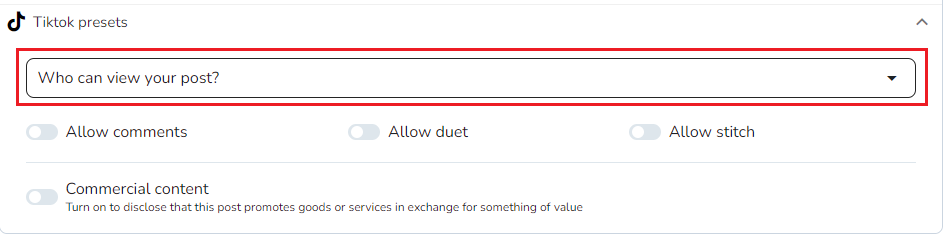
Privacy options:
Public: anyone can view the post.
Friends: only mutual followers can view the post.
Only me: only you can view the post.
Depending on whether the content is video or photo, you can also configure:
Allow comments
Allow random music for photo posts
Allow duet
Allow stitch
Commercial content
Your brand for self-promotion
Branded content for third-party promotion
Select the date and time, then save the post.
For more detail on the standard planner flow, see How to schedule content from the calendar.
Manual publishing
To publish manually, disable auto-publish. In that case, TikTok-specific settings are not available from the calendar.
When it is time to publish, you receive a notification from the platform.
Open the notification to view the post preview and access TikTok.
Tap Post to open TikTok and upload the saved video from your gallery.
Finish the post inside TikTok by adding effects, sounds, a cover, or any other final changes. The text is already copied to the clipboard.