Your Guide to Bluesky
Connect Bluesky
Open a new tab and sign in to bsky.app.
In the platform, go to the connections dashboard.
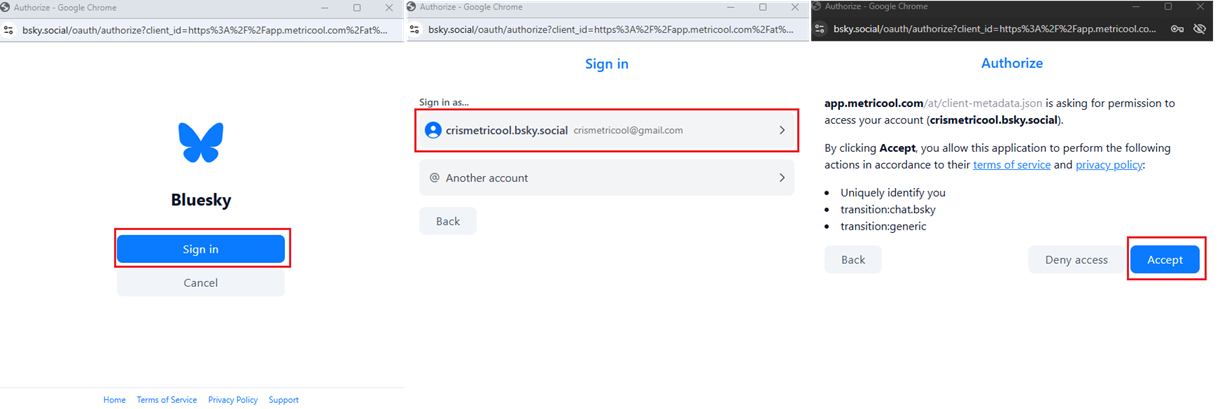
Click Connect account. A pop-up window appears. Click Sign in.
Choose your account, or enter your login details if prompted, and accept all permissions.
Schedule your content on Bluesky
Key details
Content: create a thread with up to 80 posts.
Media: attach up to 4 images, one video, or one GIF. Mixed formats are not allowed.
Character limit: 300 per post.
Alt text: supported. Click the ALT button to add it.
Mentions: enter the username. While you type, autocomplete helps you pick the correct account from the suggestions.
Languages: select the languages used in the post so Bluesky can categorize the content more accurately.
How to create a post
To schedule content, go to Planning in the top menu and follow these steps:
Click + Create new post and select Bluesky.
Add the text, up to 300 characters. You can mention other accounts.
Optional: upload your media files.
In global settings, you can enable the URL shortener and select SmartLinks.
In Bluesky settings, add the languages used in the post text.
Select the date and time, then save the post.
💡 You can also schedule Bluesky content from an autolist.
Image and video requirements
Image specifications
Allowed per post: 4
Format: JPG, PNG, WEBP, or HEIC/HEIF.
Size: up to 1 MB.
Video specifications
To post videos, your email must be verified on Bluesky. If it is not, the videos may be rejected. If that happens, verify your email and try again.
Allowed per post: 1
Format: MP4 recommended, or MOV.
Size: up to 50 MB.
Duration: up to 60 seconds.